Free · No account · Everything decided on your device

Switch away. It keeps running.

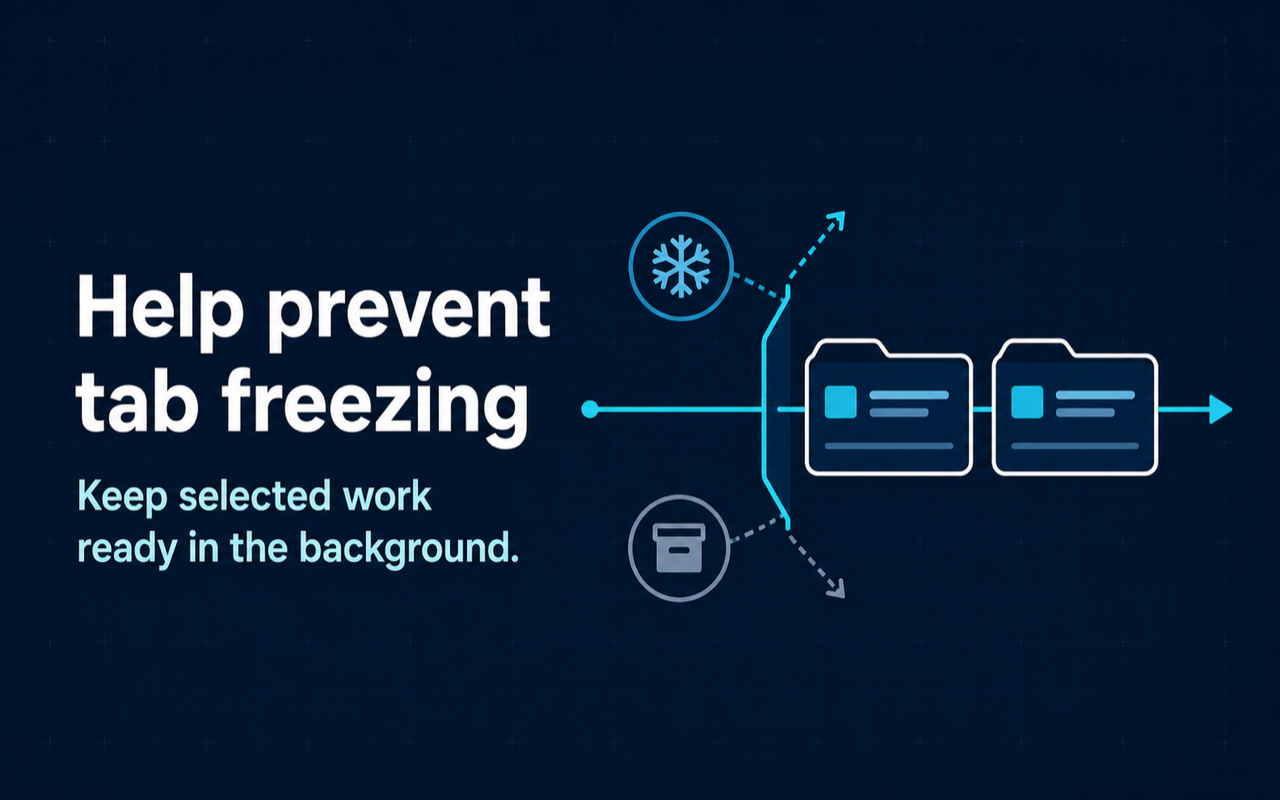
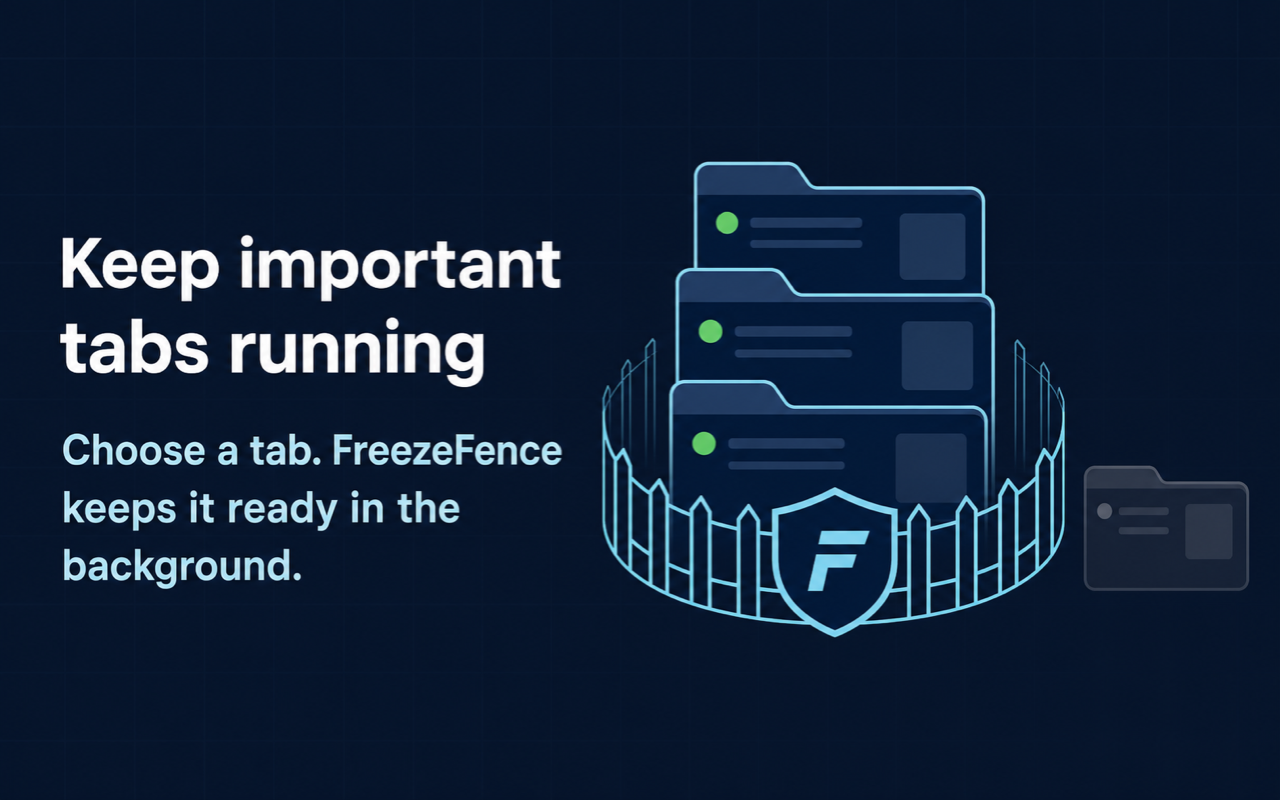
Day21 FreezeFence is a browser extension that pins the tabs you choose, so the browser stops freezing or discarding them — background tasks, music, dashboards, and half-finished work stay alive.

Coming soon to the Chrome Web StoreSee how it works

One big switch · green check when protected · three interface languages

Features

Built to be flipped once and forgotten

One switch, protected

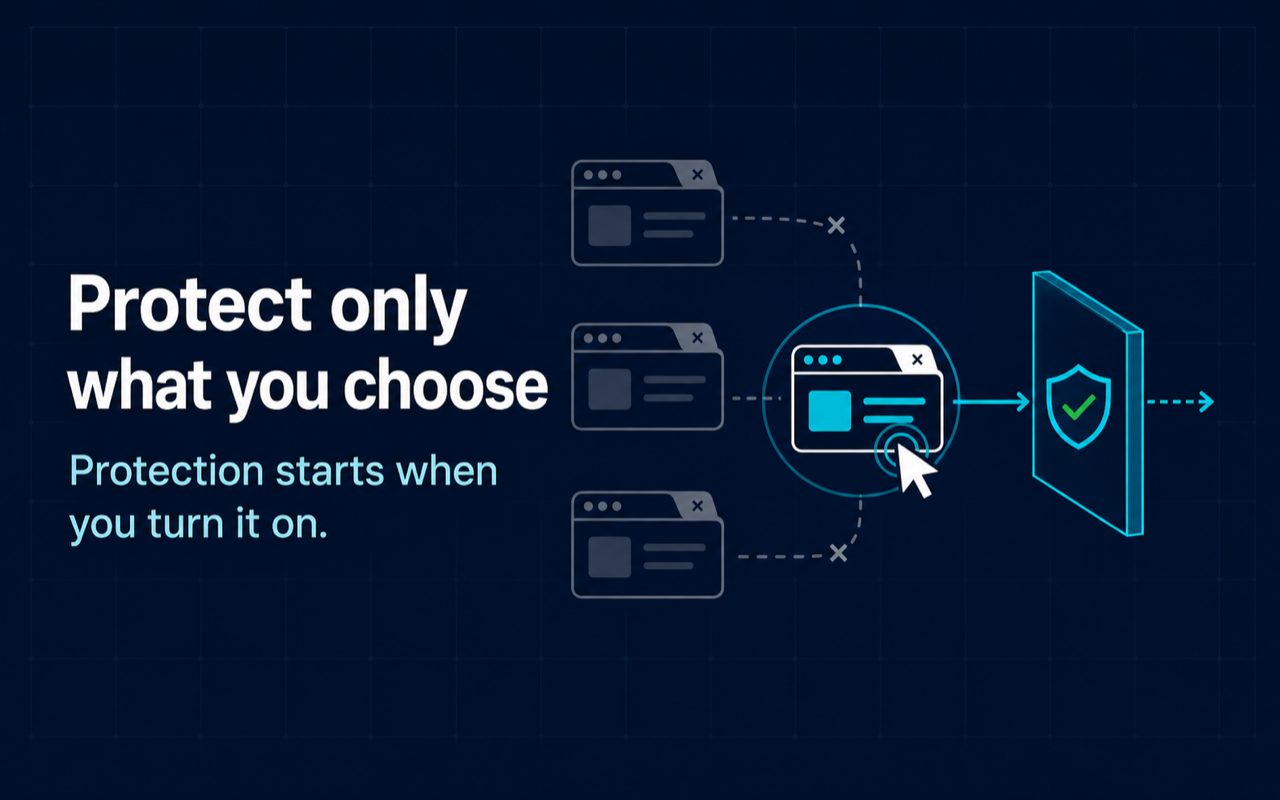
Open the page, click the icon, flip the big switch. No setup, no rule editor required — protection starts right there.

Survives the background

Switch tabs or minimize the window; protected pages keep their timers and scripts running instead of being silently paused.

No surprise reloads

Protected tabs are kept from being discarded, so half-filled forms and half-finished jobs don’t come back as a blank page.

Status at a glance

A green check on the toolbar icon means protection is active. Real state, honestly reported — including when something degrades.

Whole-site rules

Protect every page of a site once instead of tab by tab, and manage all rules from a full settings page when you outgrow the switch.

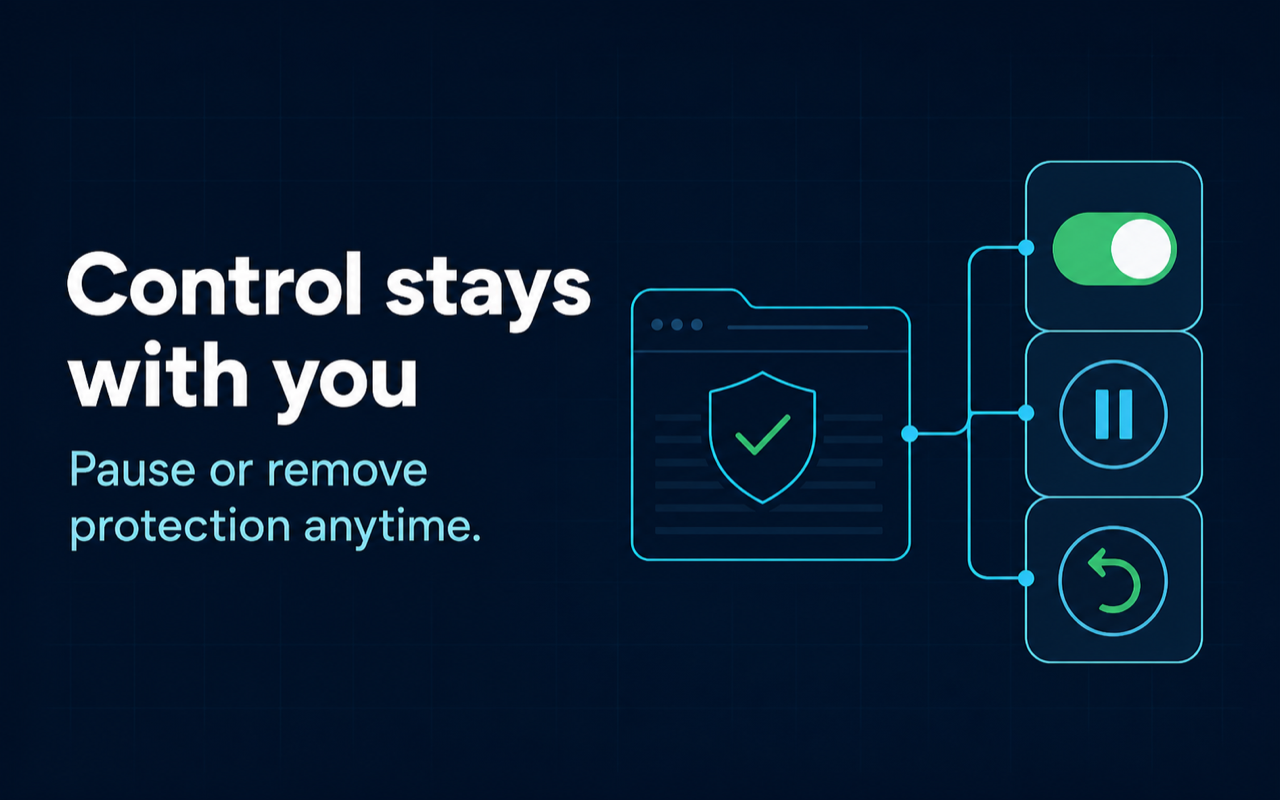
Emergency stop

One click pauses every protection at once. A keyboard shortcut toggles protection for the current tab without touching the mouse.

Plus: a plain-language status panel that tells you exactly what protection is doing, diagnostics you can export when something looks off, and an interface in English, 简体中文, and Español.

How it works

Three steps, once

  1. Install and pin the icon

    Add it to your browser and pin the icon to the toolbar so the green check is always in sight. The extension installs with no access to any website.

  2. Open the page you care about

    The one running a task, playing music, or holding a half-filled form. Click the FreezeFence icon on that page.

  3. Flip the switch

    The first time, Chrome asks once for site access — click Allow. From then on it's flip, see the green check, done.

Privacy

It checks one thing:
that your page is alive.

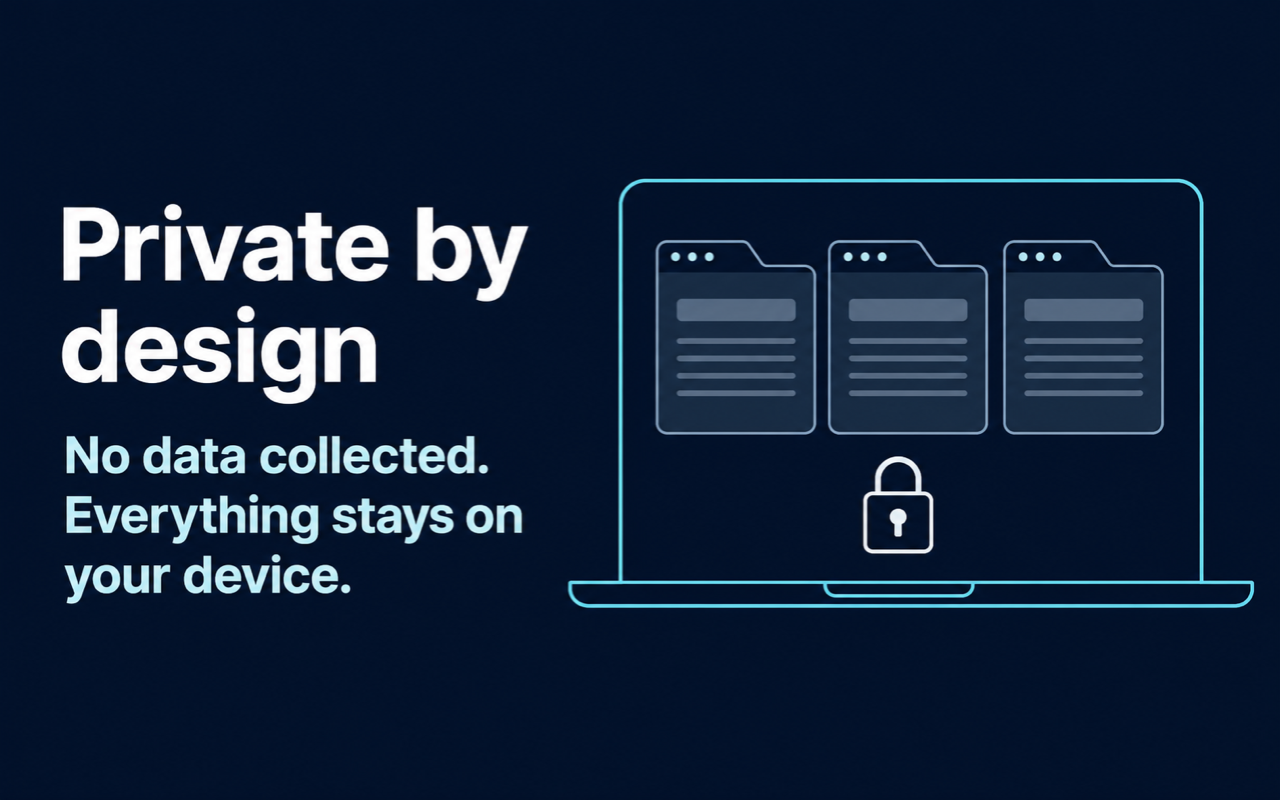
No account. No analytics. No servers of ours in the loop. FreezeFence never reads page content, passwords, or messages — it only keeps your chosen tabs awake, and every decision is made locally on your device. Even this website runs no trackers.

Read the privacy policy →

When you need it

Made for the tabs you can't afford to lose

  • Long-running web tasks, uploads, and online notebooks that die when you look away
  • Dashboards and monitoring pages that must keep refreshing in the background
  • Background music and video that cuts off after a few minutes
  • Half-filled forms and multi-step checkouts that reload to a blank page
  • Anything that logs you out the moment the browser decides to save memory

FAQ

Questions, answered

Why do tabs stop working in the background at all?

To save memory, modern browsers quietly pause (“freeze”) tabs you haven't looked at for a while, and may even unload (“discard”) them completely. That's why a task stops when you switch away, or a half-filled form reloads blank. FreezeFence tells the browser to leave your chosen tabs alone.

Why does Chrome warn that the extension can “read and change all your data on all websites”?

That sentence is Chrome's fixed template for site access — every extension that needs it gets the same wording. FreezeFence asks once, the first time you turn protection on, and uses the access for exactly one thing: checking that your protected pages are still alive and re-applying protection after reloads. It never reads page content, passwords, or messages, and nothing leaves your device.

Is it free?

Yes — free to install and use. No account, no paywall today. Features and pricing may evolve over time.

Do you collect any of my data?

No. There is no account, no analytics, and no servers of ours involved. All decisions happen locally in your browser, and your rules and settings stay on your device.

Can a protected tab still get frozen?

In extreme cases, yes — under severe memory pressure the operating system or browser can still step in. FreezeFence is honest about this: the icon and status panel show real protection state, including a degraded state when something is fighting back, instead of pretending everything is fine.

Which browsers does it work on?

Google Chrome 110 or newer, and Chromium-based browsers that support Manifest V3 extensions.

How do I stop protecting a page?

Flip the same switch off. There is also an emergency “pause all” that suspends every protection at once, and uninstalling the extension removes everything, including its local data.

Stop babysitting your tabs.

Launching soon on the Chrome Web Store. Questions in the meantime? Get in touch.